
In this tutorial you will learn how to create glossy style text effect. Perfect style for your website header. In this text effect we are going to be using 7 easy steps.
Here’s the effect we’re going for:

Step 1:
Open A New Photoshop Document
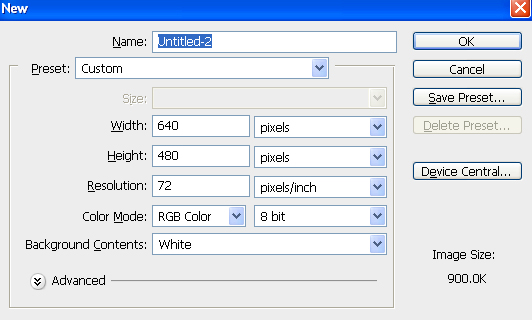
Step 2:
Fill The Document With Black

Step 3:
Add Your Text To The Document

Step 4:
Choose A Color For Your Text Using The “Color Overlay” Layer Style

Click on the color swatch to the right of the “Blend Mode” options to choose a new color for your text: #ffa200

Step 5:
Add An Inner Shadow To The Text Using The “Inner Glow” Layer Style.
all we need to do is change the Blend Mode at the top. Click on the down-pointing arrow to the right of the word “Screen” and change the blend mode to Multiply

Your text will now look something like this:

Step 6:
Apply The “Bevel and Emboss” Layer Style
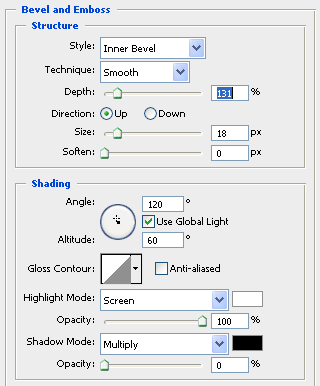
Your text will now look something like this:

Final Step 7:
Now Apply The “Inner Glow” Layer Style
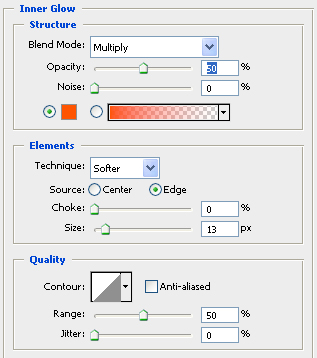
Here is the final “Smooth Glossy Text Effect” effect:
I would be greatful if you could take a second to help promote my blog and share this link with any of your favoured networking sites using the link below…